Using Hyvor Talk
This page gives those new to Hyvor Talk a brief explanation of how to do the basics on the platform. For those of you who are used to Disqus, some things are very similar, and some are quite different.
You can use the links here to access a particular section on this page.
Setting Up A Hyvor Talk Account
OK, first off, you need to create a Hyvor account, which can be done here: https://hyvor.com/signup
Your username needs to be unique.
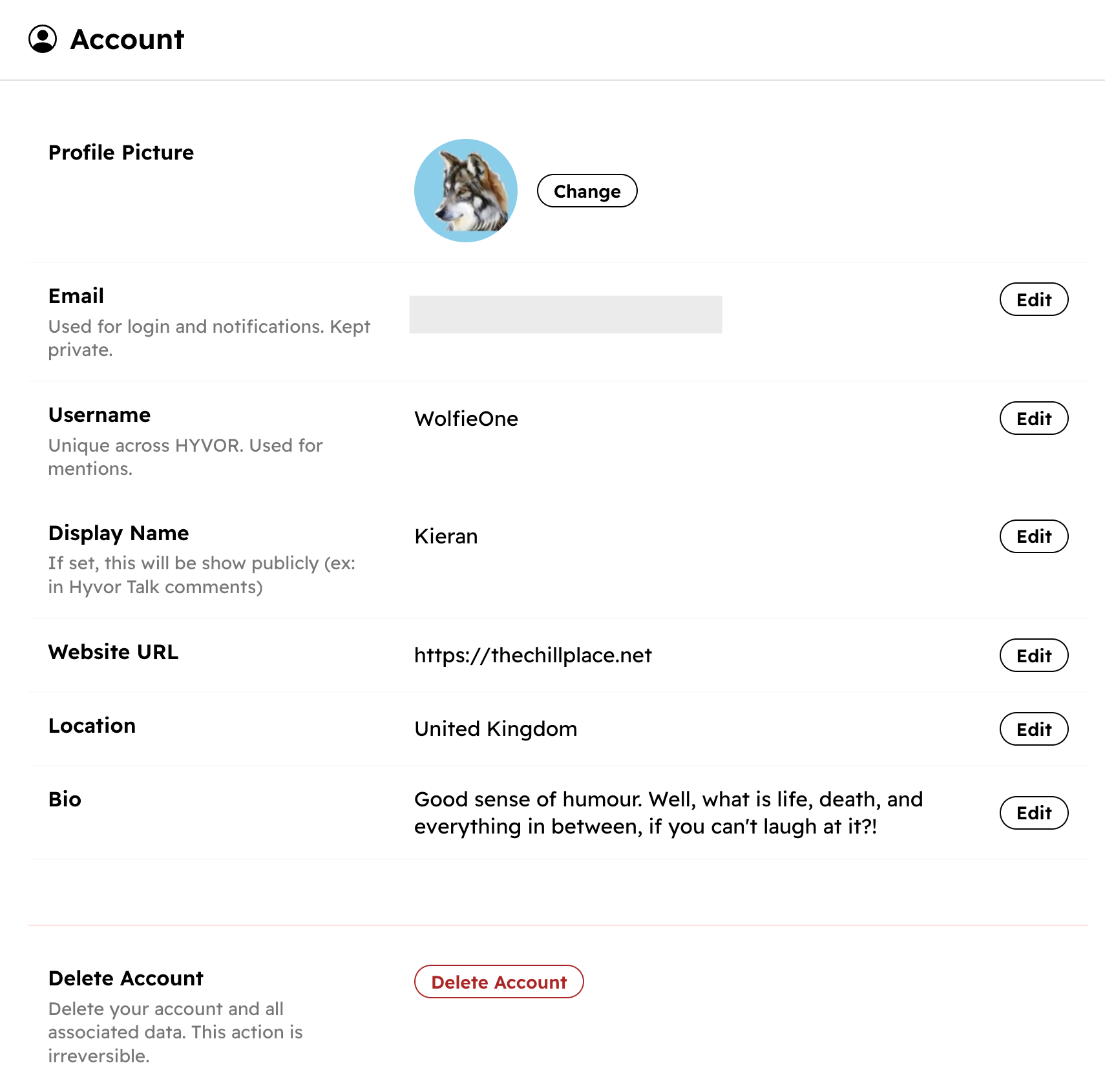
Once created, you will have an account page: https://hyvor.com/account
There, you can change settings such as your profile picture, email address, username, display name, bio, etc.
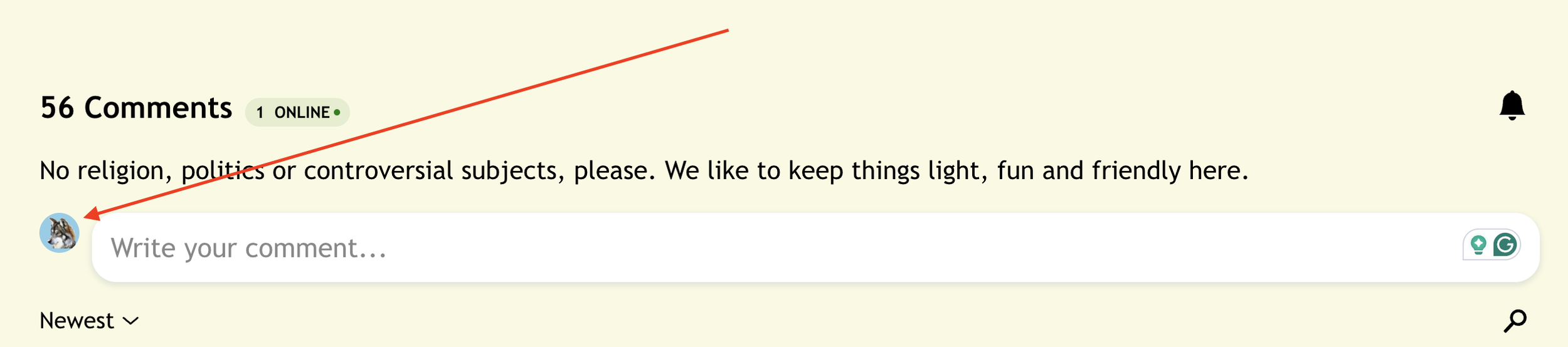
You can access this at any time just by clicking/tapping your avatar at the top of any Hyvor thread.
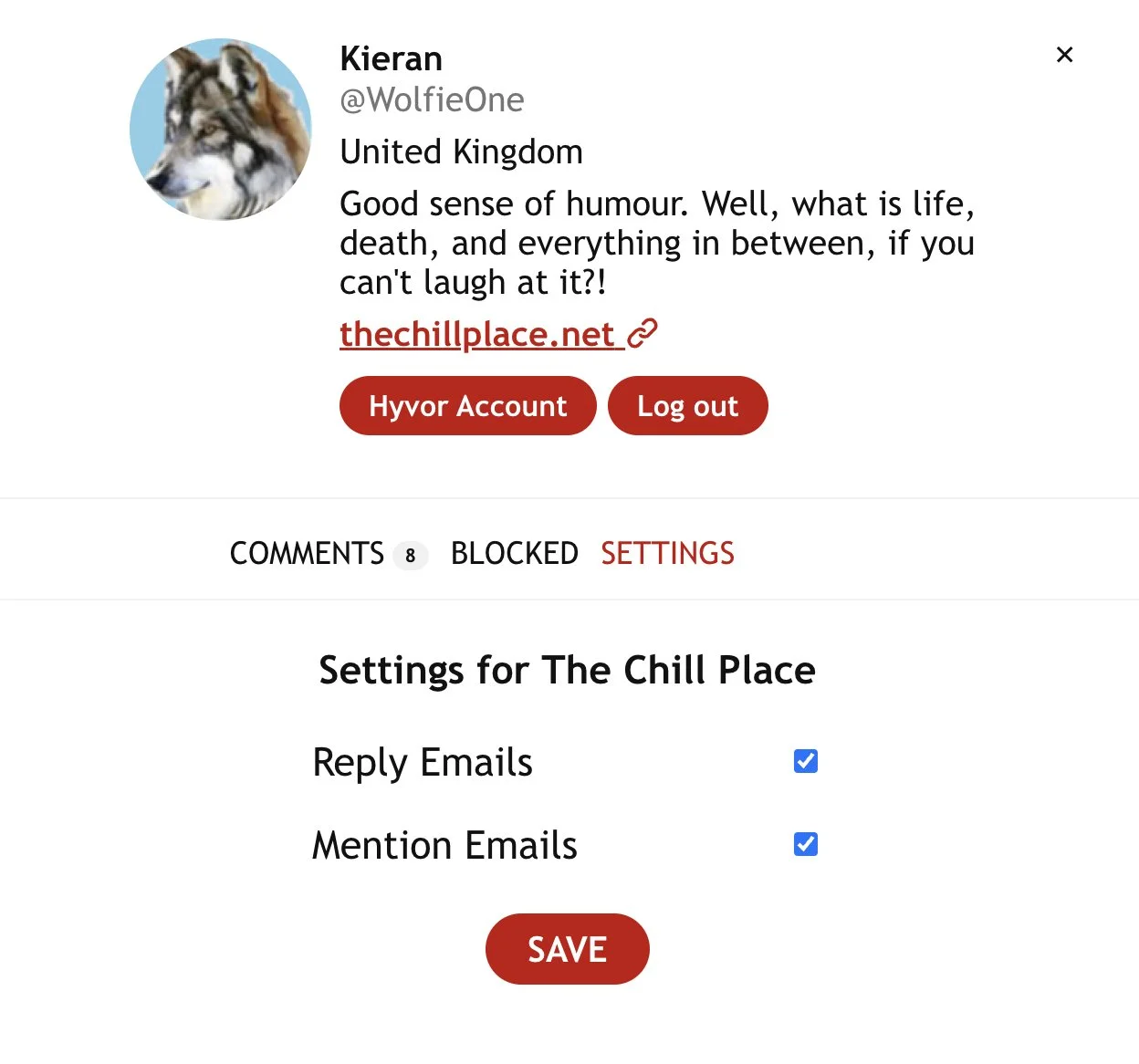
This pop-up opens.
That is where you can access your account and log out, if you wish.
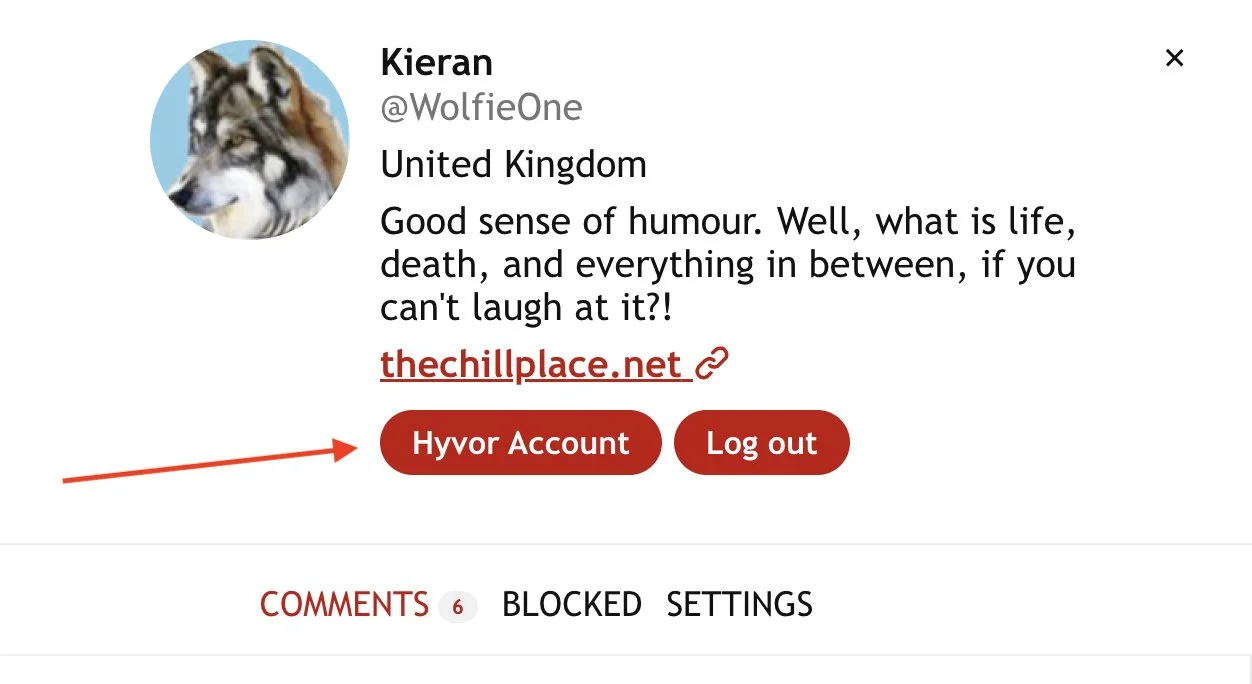
Below that, you can see Comments, Blocked, and Settings.
Comments shows the comments you have made on the site. The total amount and comments shown reflect only comments made on each site that you are currently viewing your profile on. It does not include comments made on other Hyvor-enabled sites.
Blocked is where you manage any users that you have blocked.
And Settings is where you can manage the email notifications for each Hyvor-enabled site.
Unlike Disqus, Hyvor doesn’t have a standalone profile showing all your comments or a notifications page showing all replies from everywhere as web notifications. All is dealt with individually on each site.
By default, emails are sent out for replies made to you on this site or when you are @mentioned here. But Settings is where you can turn those on and off as you desire.
Ok, that’s the account all set up, so now we can look at how to use it.
Commenting
The comment box has seven icons at the bottom.
From left to right, these are the emoji picker, the image upload button, the GIF search button (which is powered by KLIPY), the link button, and then the text formatting options, which are bold, italics and quote.

Adding Images and GIFs
PNG, JPG/JPEG, GIF and WebP formats are supported.
The current file size limit is 5MB.
To add an image or GIF from your device, you can drag and drop, or click/tap the image upload button and browse to the image/GIF and open it.
The image/GIF will preview in the comment box, and you can then post the comment.
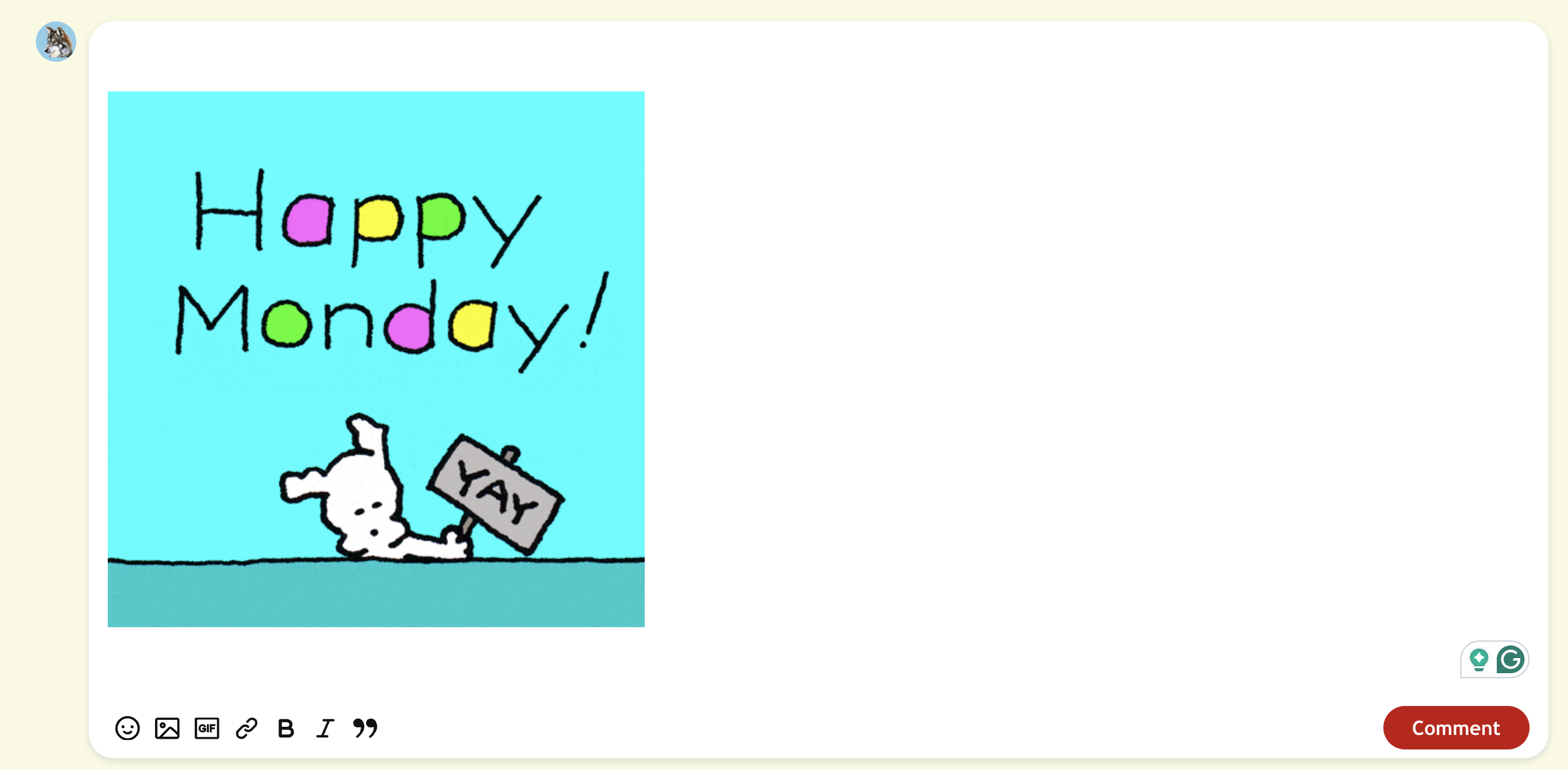
You can also embed images/GIFs from the Internet. This can be done in two ways.
The first way is to copy the link to the chosen image/GIF.
Then click/tap the image upload button and paste the link into the paste URL box.
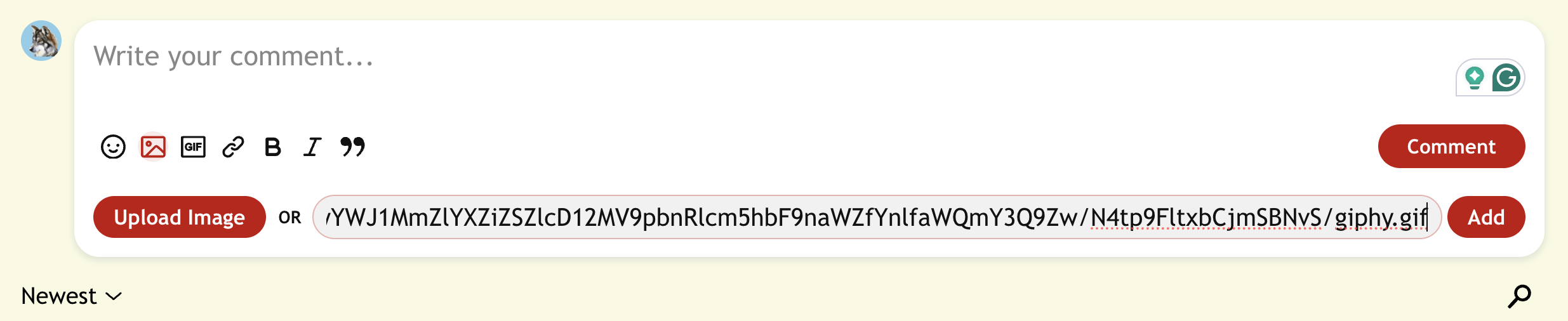
Click/tap Add, and the image/GIF will embed.
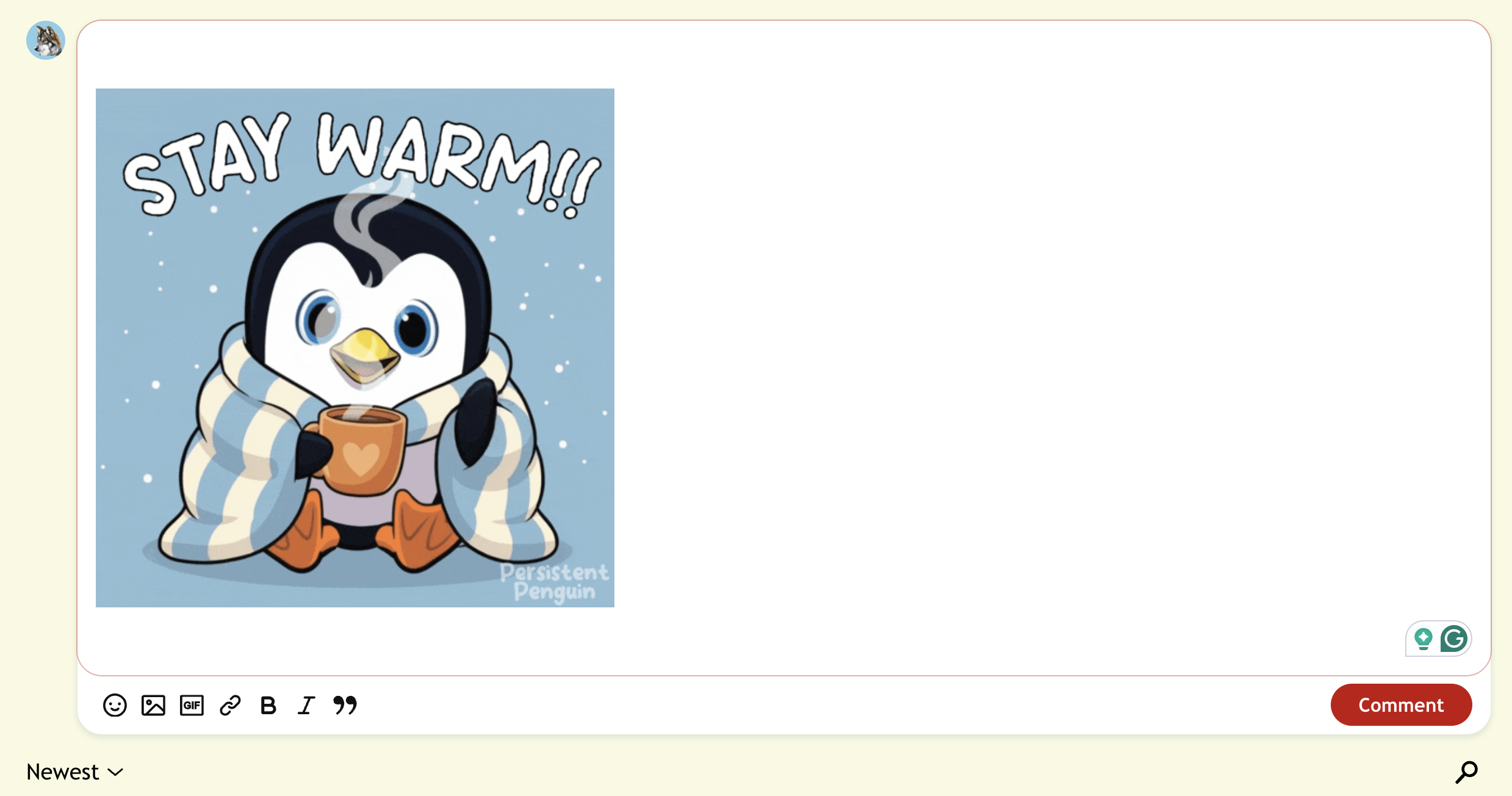
The second way is to find a GIF/image, right-click on it and “copy image”.
You can then paste this into the comment box, and it will embed.
This also works on mobile/tablet using long press > copy image > paste.
Adding Videos and Links
For sharing a video or music, you can just copy a link from YouTube, X, Bluesky, Facebook, etc., and paste it into the box, and for most sites, it will automatically embed. You will see “Loading embed…” briefly, and then the video will preview. You can then post it.
Those links that aren’t embeddable, you won’t see loading embed, and it will just show the clickable link.

Editing and Deleting
You can edit your comment after posting, but how long after posting that is allowed for is controlled by each site. There is no default 7 days as Disqus has. It can be any length of time, from one minute to forever.
Here, it is currently set to 24 hours.
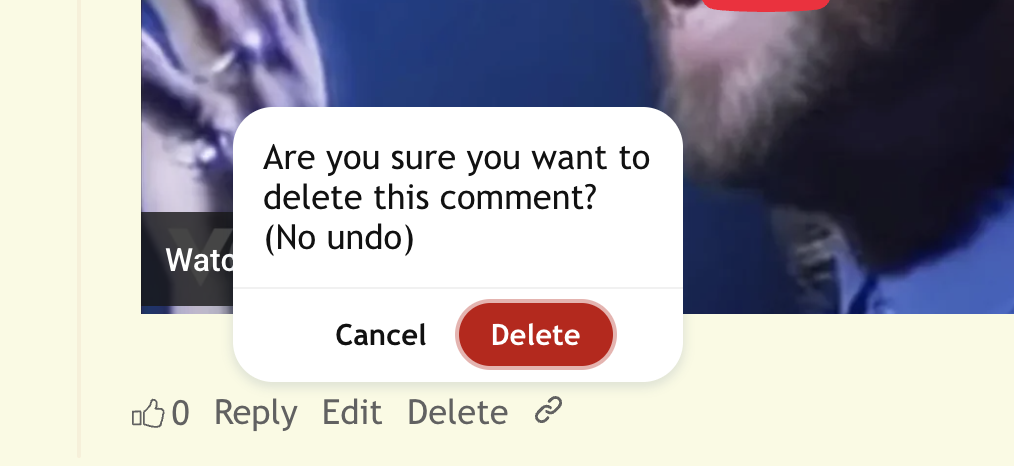
When you delete comments, you will be given a confirmation prompt before the comment is deleted. Any comment deletion made by the user is permanent.
Tagging Another User To A Comment
You can only @mention someone who has already made at least one published comment on a site. It isn’t possible to tag anyone who has not already commented here.
To do this, type @, and the various users you can tag are shown.
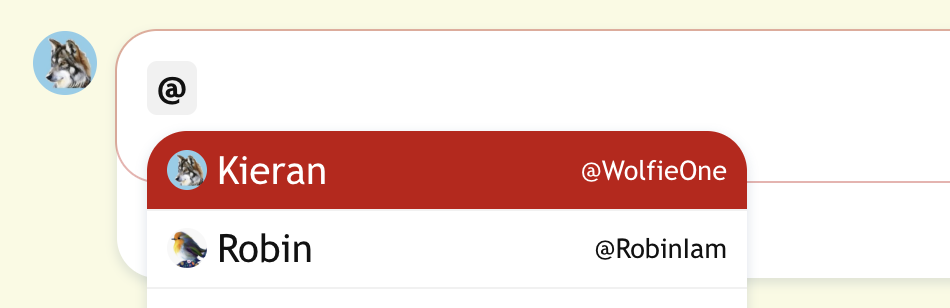
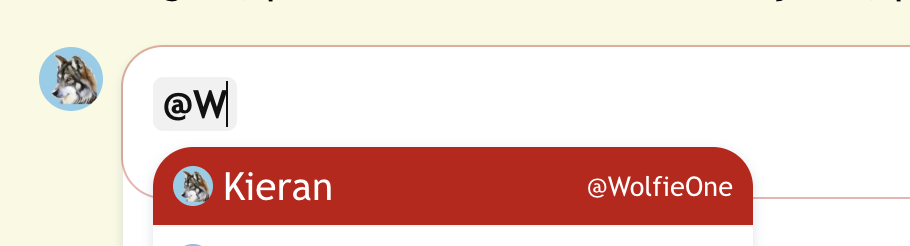
You can click/tap on the one you want, or start typing the @username—not the display name—to narrow down the options if there is a long list of users shown.
Replies and New Comments
Replies
Replies can be picked up in several ways.
Hyvor has optional email notifications for replies and @mentions. They also have a notifications bell.
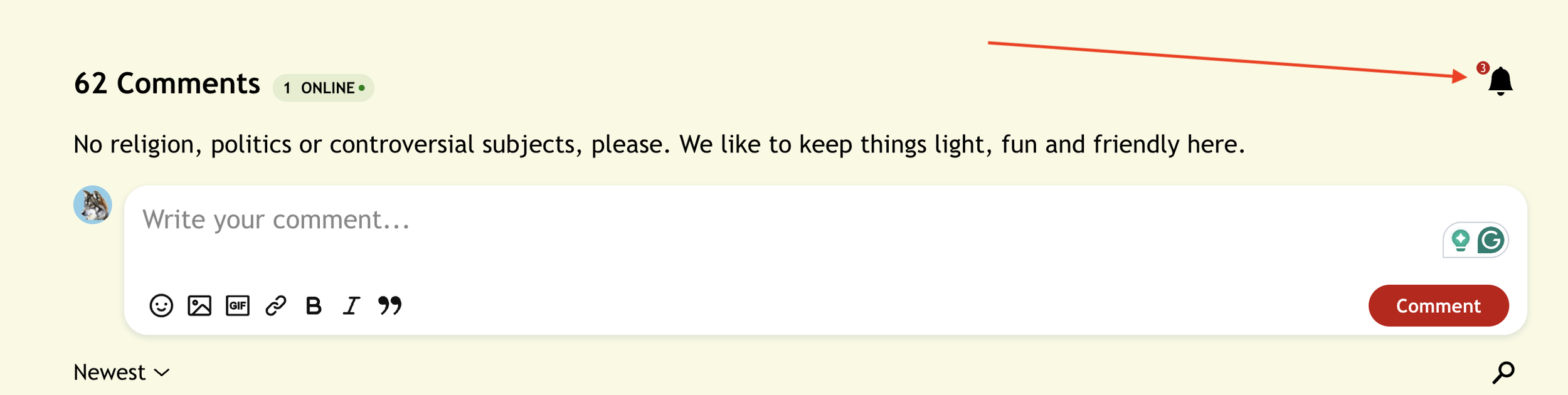
When someone has replied to you here, the notifications bell at the top of the thread will show a small red circle showing the number of unread replies that you have.
Click/tap on the bell, and a list of the replies you have received will show.
The new replies will have the text that says who has replied in bold type.
Once you have read it, the type is no longer bold
If you opt to have emails sent to you for replies, you can post a reply to the thread simply by replying to that email. The reply is posted almost instantly.
Customisation features added to the standard Hyvor embed here include a standalone notifications page, where you can read any replies made to your comments and pick up @mentions.
https://notifications.thechillplace.net/
Clicking on each notification there will take you to the appropriate comment in a new tab, where you can reply/upvote as desired, before closing the tab to return to your notifications page to pick up the next one, and so on.
The notifications page also keeps a tally of comments made and upvotes received on all sites within this organisation.
New Comments
When new comments have been made on a thread since your last visit, you will see them highlighted in green.
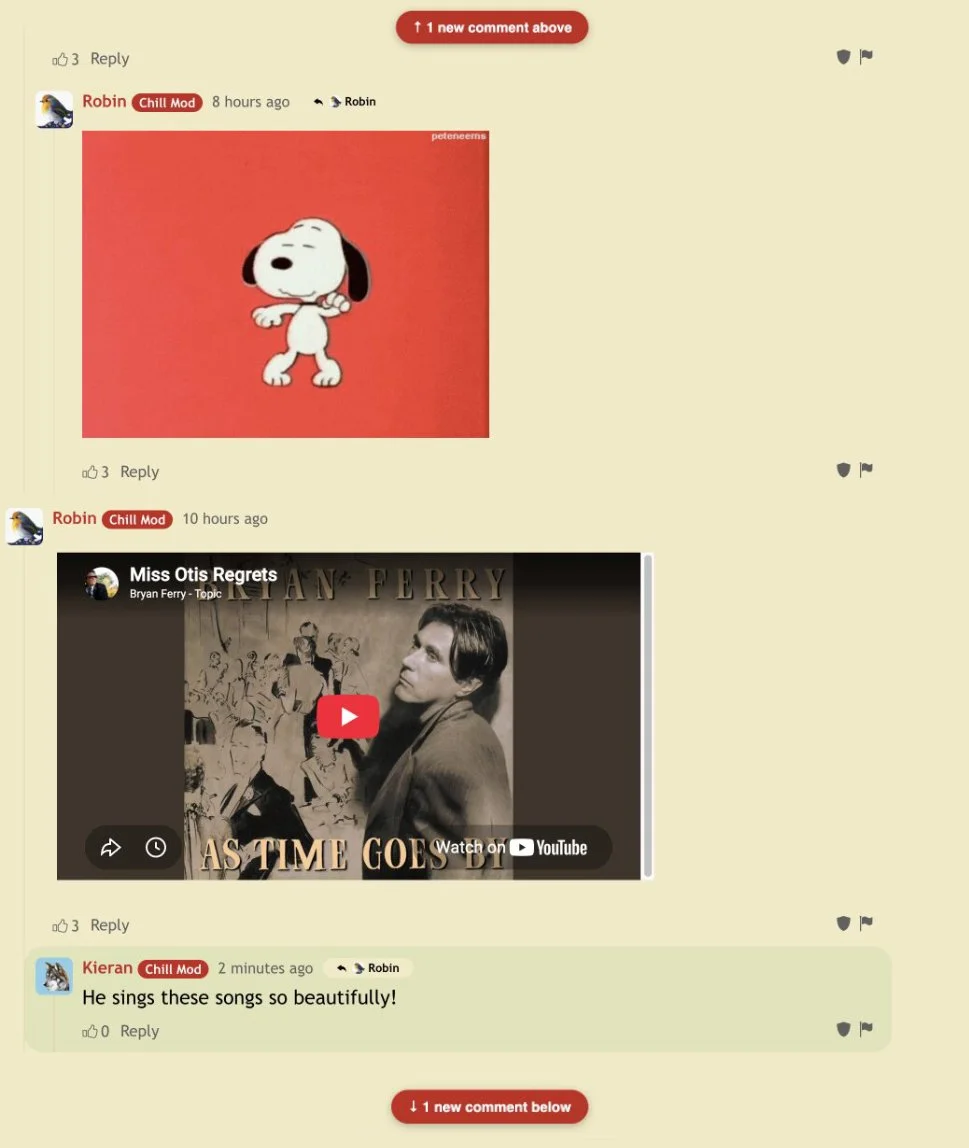
There are also “X comments above” and “Y comments below” prompts at the top and bottom of the page, and clicking either of those will auto-scroll you to each new comment in turn.
Viewing User Profiles and Blocking
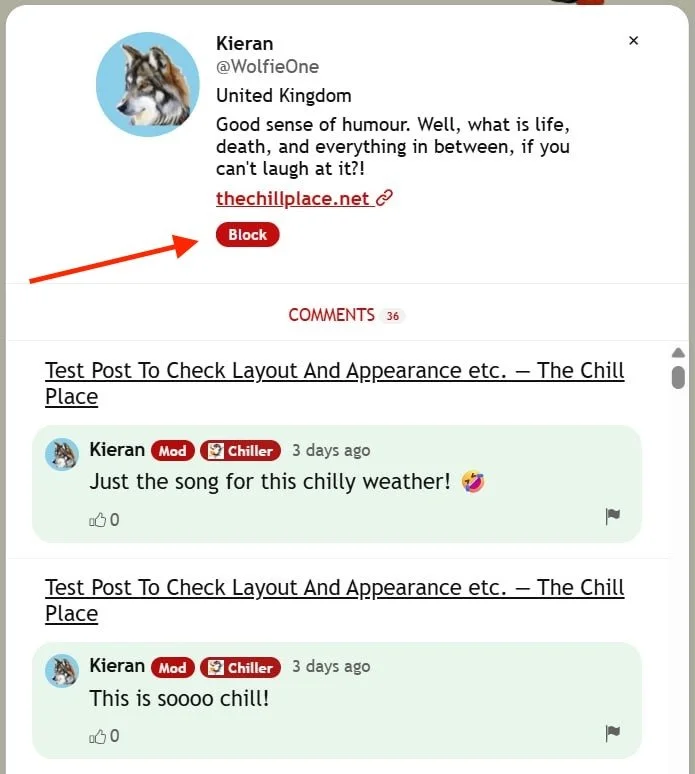
To view another user’s profile, click/tap on their name on a comment they have made.
Their profile will open in a pop-up, and you will see the comments that they have made on this site, and only on this site.
In order to see the comments they have made on another Hyvor Talk site, you would need to go to that site and click/tap on their name on a comment there.
As with the comment thread, any new comments made since you last visited the site will be highlighted in green.
In the profile, you can also block that user.
Searching The Comments
There is also a search function, where you can search for a particular comment on a thread using keywords.
Click/tap on the magnifying glass icon under the top comment box on the right.

Simply type in a keyword or words to search, and the matching comments will be shown.
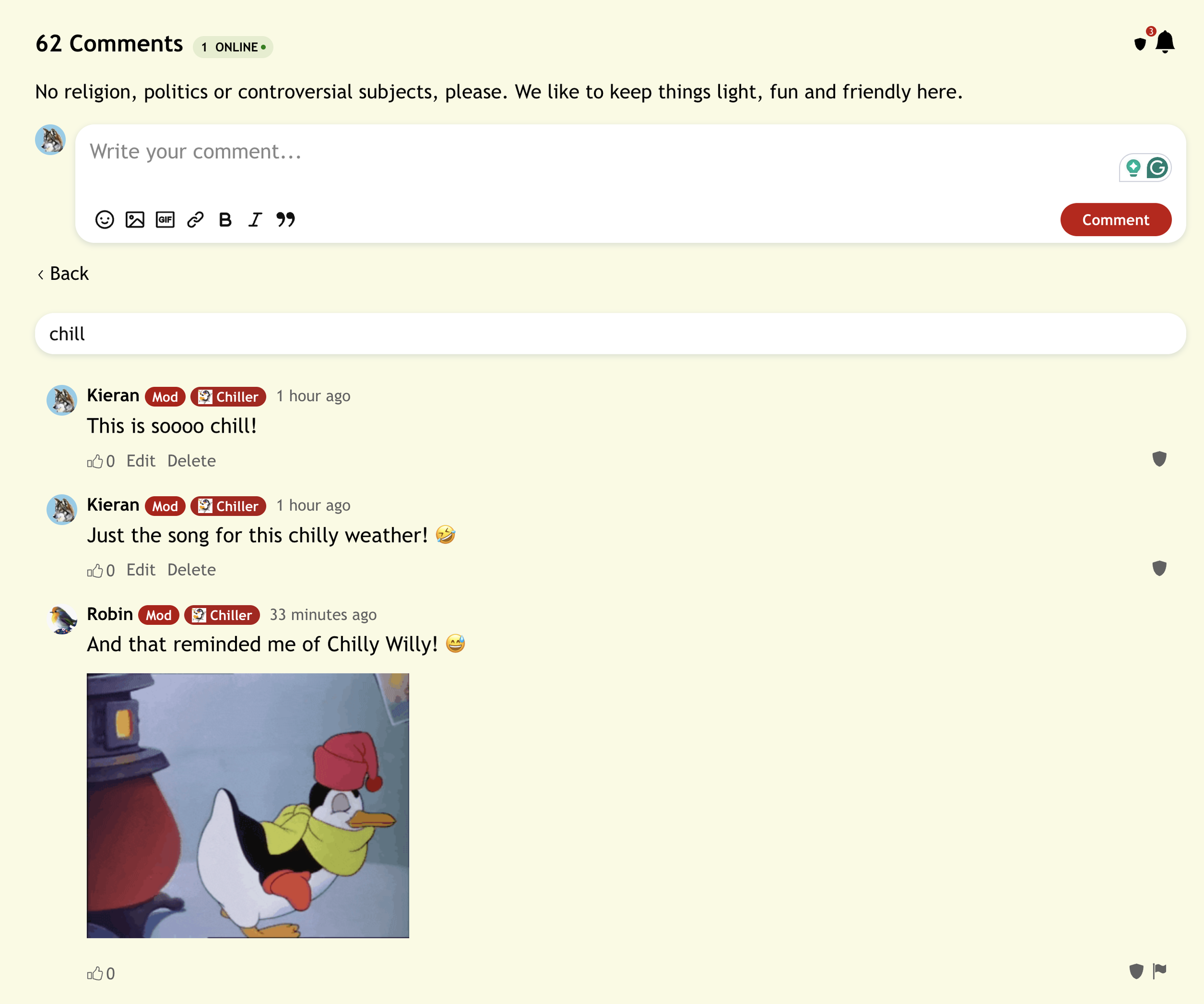
To return to the thread, click/tap on “< back”, or to go to one of the comments, click/tap on the timestamp for it.
A new tab will open showing the comment you have selected.
If the comment is a reply to another, and you want to see the comment it was a reply to, click/tap on “Show parent comment”.
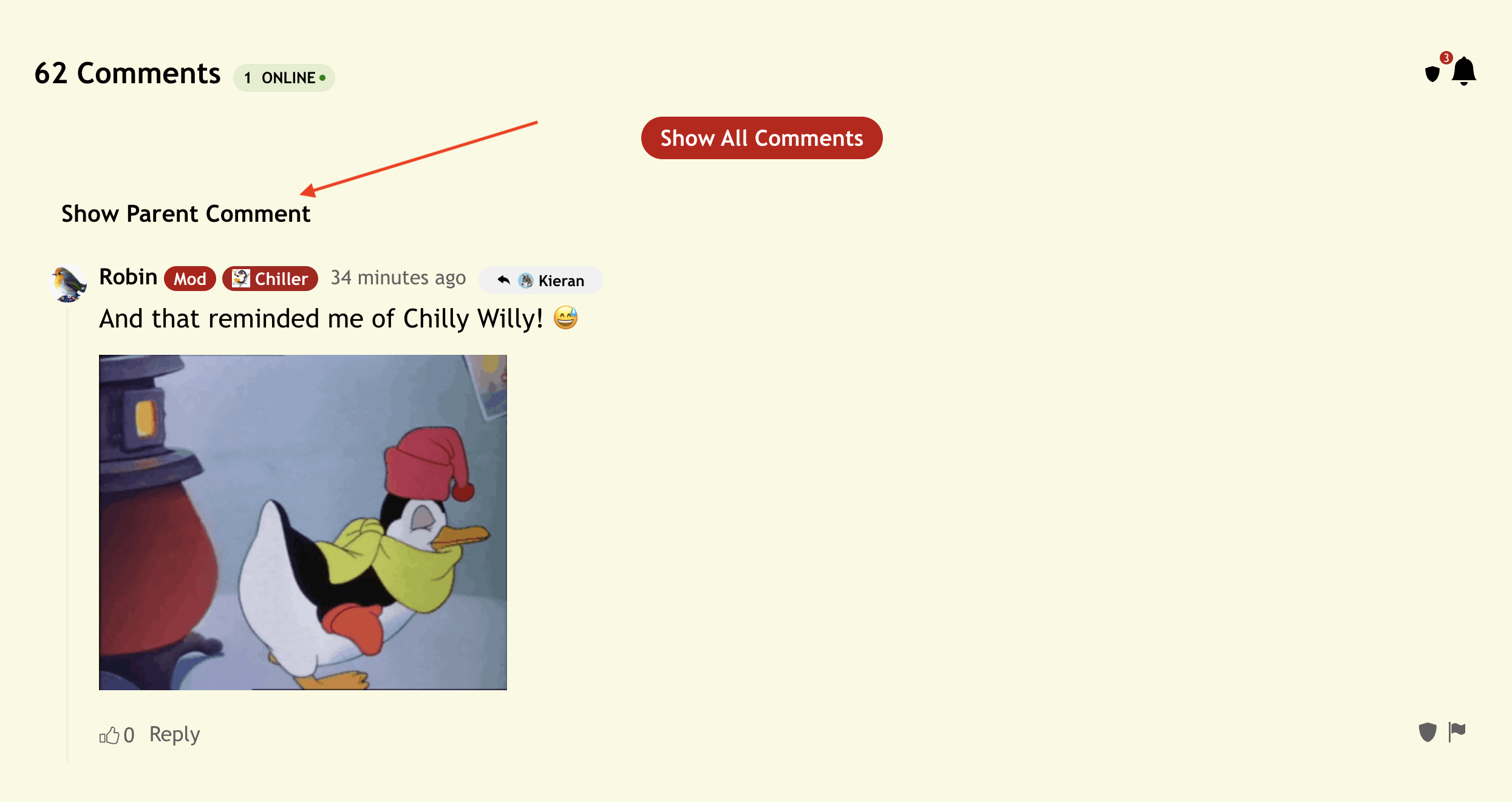
You will then see that comment as well as any other comments made as replies to it.